How the AI X-Ray Mirror Effect Works: Face and Hand Tracking With MediaPipe
Not a real X-ray: an AI finds your face and hands, and a web page draws anatomy on top
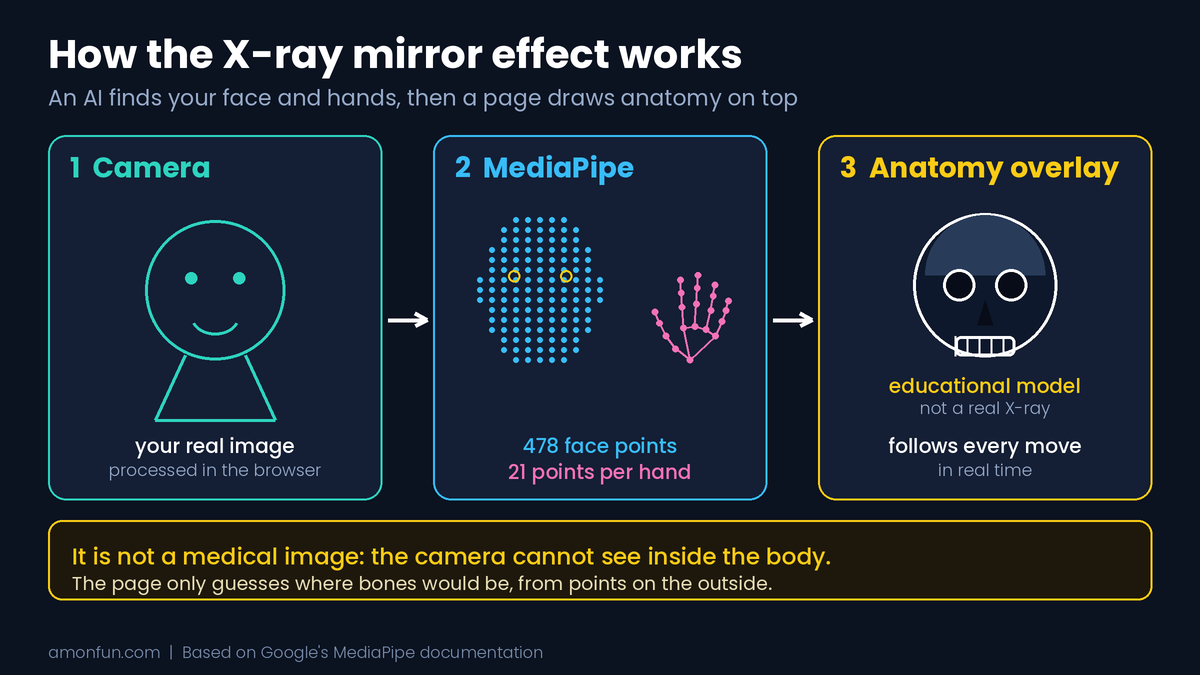
Videos of an "X-ray mirror" are spreading on social media. A person stands in front of a laptop camera, and a skull, a brain and hand bones appear on their real face and hands, following every move. It looks like magic, but it is a clever use of face and hand tracking. This guide explains how it works, using Google's own documentation, and what to check before you try something similar.
It is not a real X-ray
A camera cannot see inside the body. The page only knows where your face and hands are, and it draws an anatomical model in those places. The model is educational and simplified. It is not a medical image, and it cannot tell you anything about your health. Any page that does this should say so on screen.
The tool behind it: MediaPipe
The effect relies on MediaPipe, an open source tool from Google. It has ready-made models for the web that run in the browser. Two of them matter here.
| Tool | What it gives you | Source |
|---|---|---|
| Face Landmarker | 478 3D face landmarks, 52 blendshape scores between 0 and 1 (for example how open the jaw is), and an optional 4x4 matrix with the position and rotation of the face | Google AI Edge documentation |
| Hand Landmarker | 21 3D landmarks per hand, a left or right label, and a second set of 21 points in real-world meters | Google AI Edge documentation |
How it works, step by step
- The camera sends video. The page asks permission to use the camera. Without your permission, nothing happens.
- MediaPipe finds the points. For each video frame, the models return the face points and the hand points.
- The matrix places the head. The 4x4 matrix tells the page where the head is, how far away it is and how it is tilted. The page uses it to turn a 3D skull and brain the same way.
- Blendshapes move the jaw. When the jaw-open score rises, the lower jaw of the model opens.
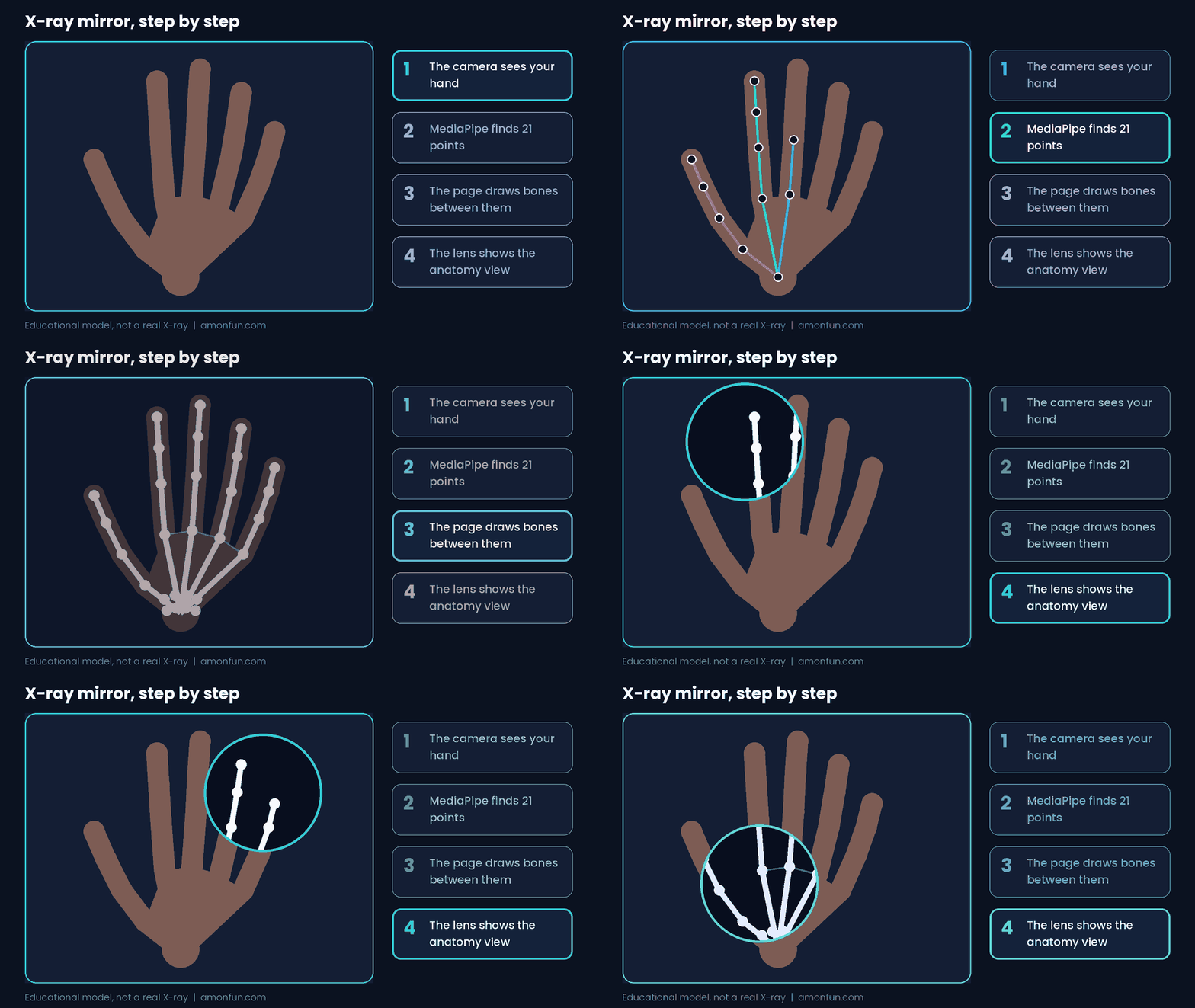
- The hand points place the bones. The page draws a bone between each pair of joints.
- The page draws everything on the video. The model is drawn on top of the camera image, so it looks attached to you.
The hand: 21 points, 27 bones
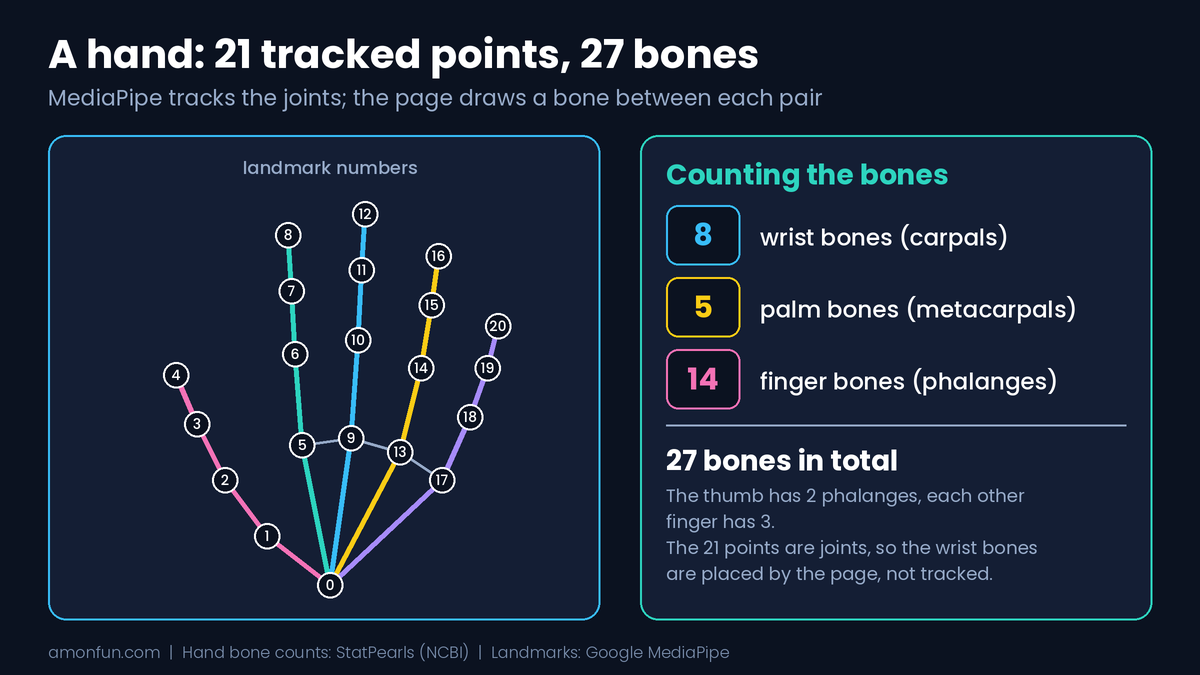
A human hand has 27 bones, according to the StatPearls anatomy reference of the US National Library of Medicine. That is 5 metacarpals in the palm and 14 phalanges in the fingers, and the remaining 8 are the wrist bones. The thumb has 2 phalanges and each of the other four fingers has 3.
MediaPipe does not track 27 bones. It tracks 21 points, mostly joints. The page draws each bone as a shape between two points, and it places the wrist bones near point 0 by an estimate. That is why the effect is believable but simplified.
Watch the official explanation
Official video from Google for Developers: Face landmark detection, ML on Web with MediaPipe, Episode 11 (about 7 minutes). Embedded from YouTube.
In this short Google video, a Google developer advocate shows how to detect and locate points on faces in images and video with JavaScript.
The "X-ray lens" trick
Many videos use a round lens that follows the tip of the index finger. Hand point 8 is the tip of the index finger. Inside the circle, the page shows the anatomy view, and outside the circle it shows the normal camera image. The effect looks like you are scanning your own head, but it is only a mask that moves with a point.
Two details that often go wrong
- Left and right. Google's documentation says the Left and Right labels belong to the person, so if you mirror the input image, they appear inverted. A good page sends the original video to the model and mirrors only what it draws.
- Speed. On the web, the models run in video mode, frame by frame. Google lists the full hand model at about 17 ms on a phone processor (Pixel 6, CPU) and about 12 ms on its graphics chip. Slow computers can look jerky.
Trying it yourself, safely
People are making these pages by asking an AI assistant to write one HTML file and opening it in Chrome. If you do this:
- Only run code you understand or trust. Read what a downloaded file does before you open it, and do not give camera access to a page you do not trust.
- Check what loads from the internet. The tracking models are downloaded from Google when the page starts. Look at the addresses in the code.
- Allow the camera only for that page, and block it again when you are done.
- Do not describe the result as medical. Write on screen that it is an educational model, not a real X-ray.
- Test the tracking. Turn your head, open your mouth, move your hand close to the camera and far away. The model should stay attached and disappear when your face or hand leaves the frame.
Credit
The effect became popular through Arabic-language videos and guides, including one by Samer Ibrahim (@sam_ibra1). This article is our own explanation based on Google's documentation. It does not copy his guide or his prompt.
What you can learn from it
The idea is useful beyond a trick: a camera plus face and hand tracking can power games, learning tools and accessibility features. The anatomy part is the creative layer, and the tracking part is what Google provides for free.
Sources: Google AI Edge: Face Landmarker guide, Google AI Edge: Hand Landmarker guide, StatPearls: Hand Bones (NCBI Bookshelf), Google for Developers on YouTube: Face landmark detection, Episode 11.